

Features Overview
MouseCross provides a rich set of features to help you locate and track your mouse cursor.
⚠️ macOS: App Store purchases with crosshair active
macOS Sequoia 15.3+ hides App Store install and purchase buttons when any overlay window is active — this is an Apple security feature (anti-clickjacking), not a MouseCross bug.
Solution: Toggle the crosshair off before making purchases (use your hotkey or the menu bar icon). MouseCross will notify you automatically when you open the App Store while the crosshair is active.
Core Features
Crosshair Overlay
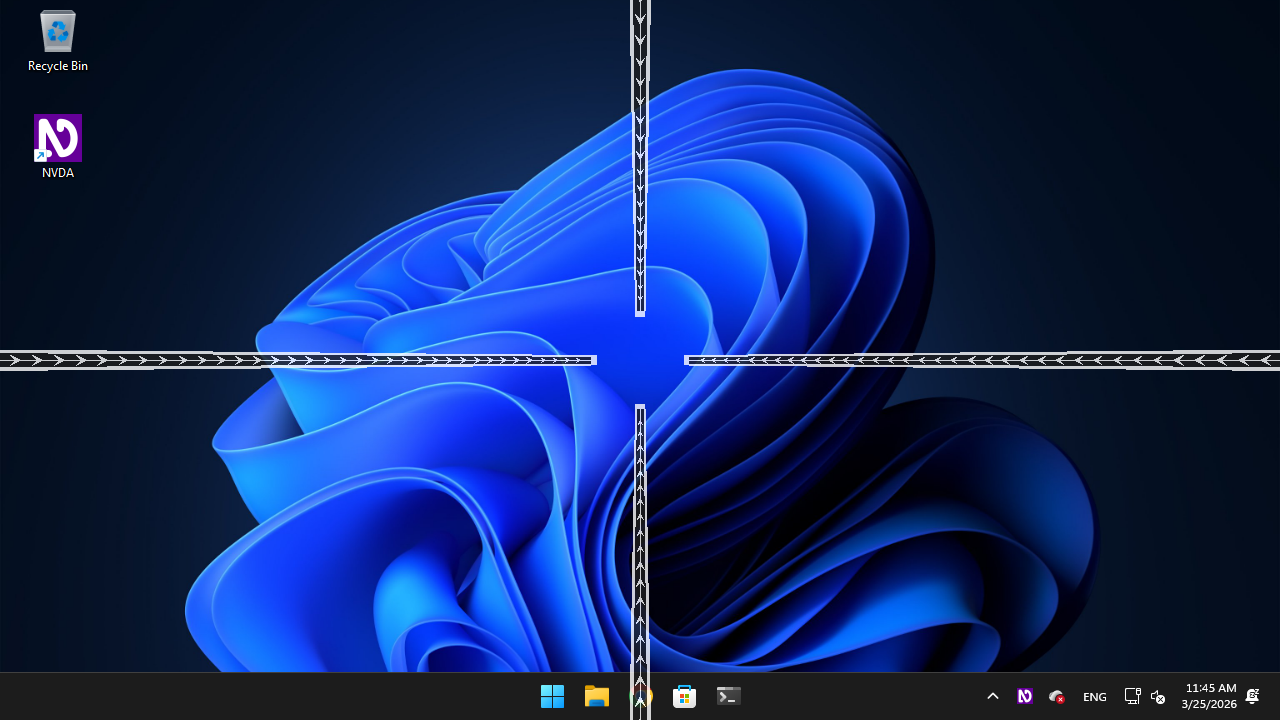
The main feature of MouseCross is a customizable crosshair that follows your mouse pointer across the screen.

Key characteristics:
- Follows mouse movement in real-time (60 FPS on Windows)
- Appears on top of all windows
- Click-through - doesn't interfere with mouse clicks
- Adjustable distance from the cursor
- Direction arrow indicators available
Direction Arrows
Arrow-shaped indicators positioned around the cursor, pointing toward it. Provides clear directional guidance to help locate the cursor position. The arrows can be toggled on or off via the "Show Direction Arrows" checkbox in Settings.
Light/Dark Theme System
Choose how the crosshair color adapts to your screen content. Three theme modes are available:
- Light – white crosshair, ideal for dark backgrounds
- Dark – black crosshair, ideal for bright backgrounds
- Follow System – automatically adapts to the current macOS/Windows light or dark mode
Windows only: Press Ctrl+Alt+X to cycle through all three themes without opening Settings.
 Light theme – white crosshair on dark background
 Dark theme – dark crosshair on light background
System Tray / Menu Bar Integration
Windows:
- Icon appears in the system tray (notification area)
- Right-click for context menu
- Double-click to toggle crosshair visibility
- Tooltip shows current state (Active/Inactive)
macOS:
- Icon appears in the menu bar
- Click for dropdown menu
- Shows current activation state
Global Hotkey Toggle
Quickly show or hide the crosshair using a keyboard shortcut without switching to the MouseCross window.
Default hotkey: Ctrl+Alt+Shift+C (Windows and macOS)
Customization:
- Change the hotkey in Settings (Windows only currently)
- Works globally - no need to focus the MouseCross window
- Instant response
Customization Features
Color Presets (White / Yellow / Red)
Choose one of three carefully selected color presets for your crosshair:
- White – default; high visibility on dark backgrounds
- Yellow – warm, high-contrast option
- Red – strong contrast for most backgrounds
Select your preferred preset via the radio buttons in Settings.
 Yellow color preset on macOS
 Red color preset on macOS
Opacity Control
Adjust the transparency of the crosshair:
- Range: 0% (invisible) to 100% (fully opaque)
- Default: 80%
- Use cases:
- Lower opacity for subtle guidance
- Higher opacity for maximum visibility
Line Width (Thickness)
Control how thick the crosshair lines appear:
- Range: 1-20 pixels
- Default: 11 pixels
- Affects: Direction arrows
- Tip: Thicker lines are more visible but may obstruct content
Cursor Offset
Adjust how far the direction arrows appear from the mouse cursor:
- Range: 10-200 pixels
- Default: 49 pixels
- Smaller values: Indicators closer to cursor (compact)
- Larger values: Indicators farther from cursor (less obstruction)
Behavior Features
Auto-Start
Configure MouseCross to launch automatically when your computer starts:
Windows:
- Adds entry to Windows Registry Run key
- Launches silently in the background
- No startup delay
macOS:
- Uses Login Items system
- Native macOS auto-start mechanism
- Respects user login preferences
Activate on Startup
Control whether the crosshair appears immediately when MouseCross launches:
- Enabled (default): Crosshair visible on startup
- Disabled: MouseCross runs in background, use hotkey to show crosshair
Welcome Dialog
On first launch, MouseCross shows a welcome dialog explaining the features and how to get started.
- Shows once on first launch
- Can be shown again from the About dialog
- Includes quick start instructions
Settings Persistence
All your settings are saved automatically:
Windows:
- Stored in Windows Registry (
HKEY_CURRENT_USER\Software\MouseCross) - Survives application restart
- Survives Windows updates
macOS:
- Stored in UserDefaults system
- Syncs with iCloud (if enabled)
- Standard macOS settings storage
Performance Features
Lightweight Resource Usage
MouseCross is designed to be efficient:
- Memory: ~10 MB RAM
- CPU: Minimal (<1% on modern systems)
- Disk: ~500 KB application size
- Startup: <100ms launch time
No Internet Required
MouseCross works completely offline:
- No network access
- No phone-home telemetry
- No automatic updates (user controlled)
- Complete privacy
Accessibility Features
See the dedicated Accessibility Features page for detailed information about screen reader support, keyboard navigation, and other accessibility capabilities.
Coming Soon
Features planned for future releases:
- Per-monitor settings (multi-monitor setups)
- Preset profiles (quick switching between configurations)
- Export/import settings
- Additional languages
Next Steps
- Settings Reference - Detailed settings documentation
- Keyboard Shortcuts - All keyboard commands
- Accessibility Features - Screen reader and keyboard support